The TAQREER pane in Word: user guide
Everything in the pane, step by step — from installing and signing in to creating and editing reports — with the specifications IT teams need.
Install and first run
Install TAQREER from Microsoft Marketplace, or ask your organisation’s Microsoft 365 admin to deploy it for you.
- In Word: Home → Add-ins, search for TAQREER and choose Add.
- Word picks the Taqreer tab and opens the pane beside the document — the first time after installing.
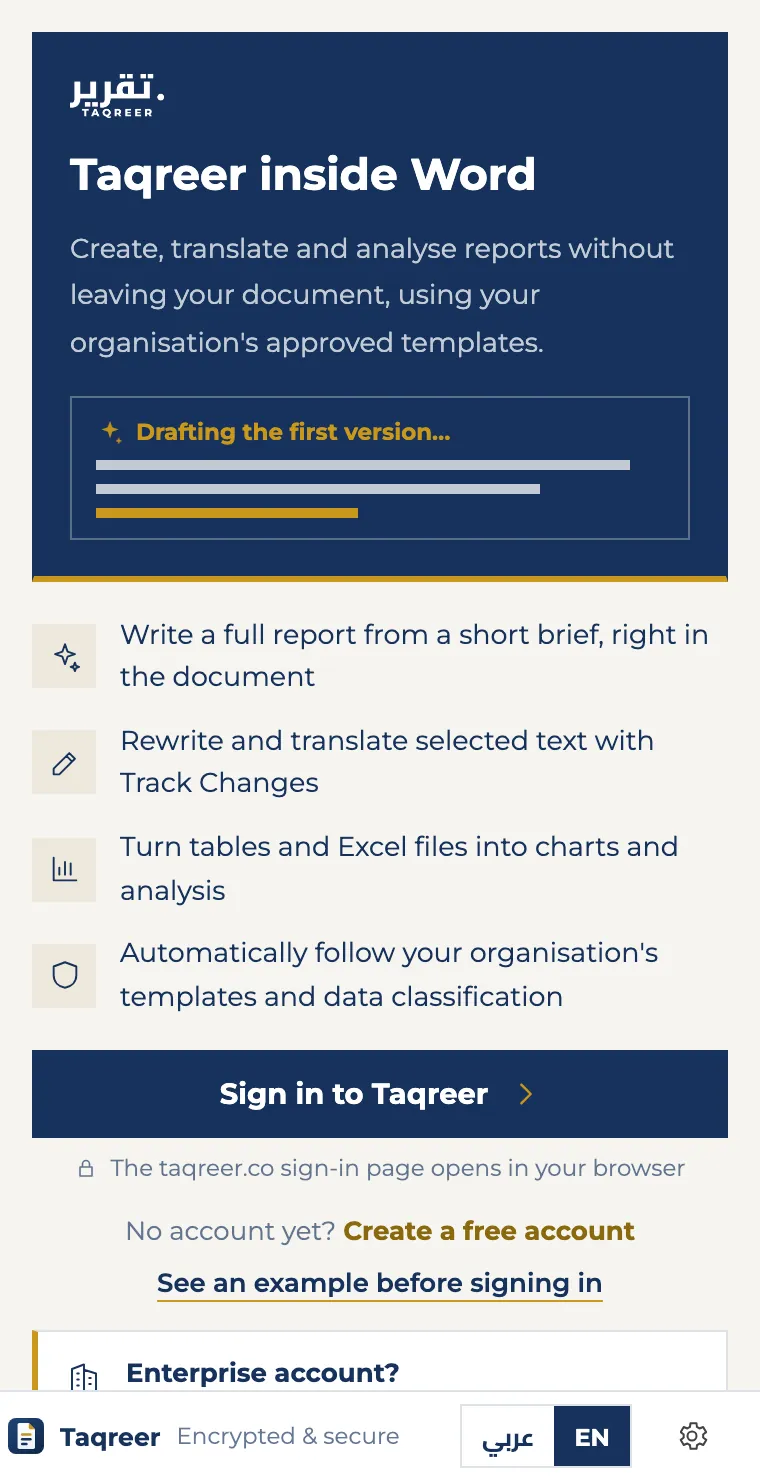
- The pane starts on the welcome screen: what TAQREER does, the sign-in button, and an example to look at before signing in.
Every time after that: The Taqreer tab at the end of the ribbon → Open pane.
Sign in
- Choose “Sign in to Taqreer” — the taqreer.co sign-in page opens in your browser.
- Sign in with your account, or create a free one on the same page.
- Back in Word, Home shows your name and balance.
A TAQREER account: Separate from your Microsoft account — no Microsoft work account needed.
The parts of the pane
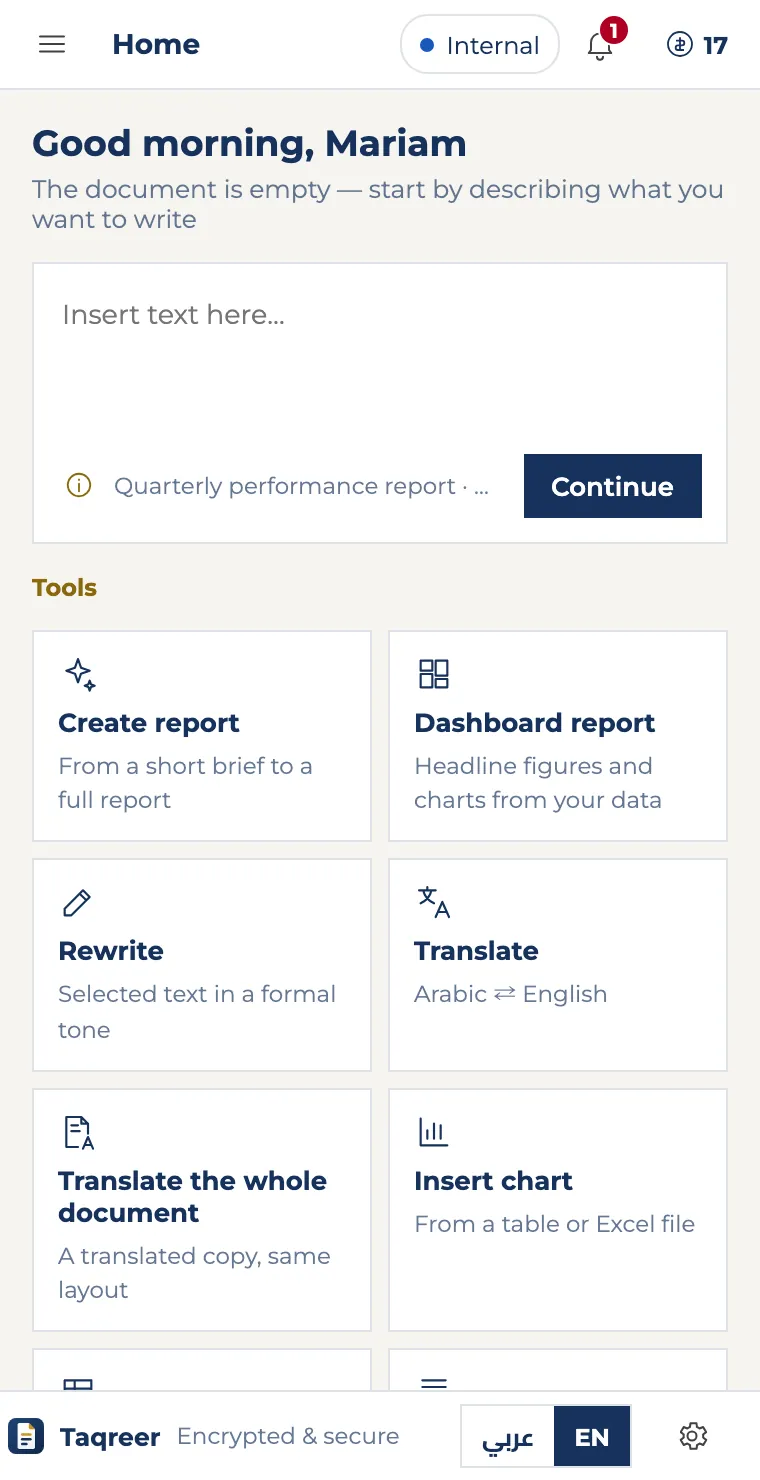
Home after signing in, and what each part does.
- 1MenuEvery page and tool: home, create, edit, signatures and more.
- 2Page nameWhere you are; the back arrow returns to the previous page.
- 3Document classificationPublic, internal or confidential — written into the document’s header and footer.
- 4NotificationsWhat’s new on your account.
- 5Your balanceThe reports you have left — click for your plan and buying more.
- 6Writing boxType what you need, then Continue. Hover over ⓘ to see an example.
- 7ToolsEach tool in one click: create report, dashboard, rewrite, translate and more.
- 8LanguageSwitch the pane between Arabic and English.
- 9SettingsYour account, where new content goes, your signature, and opening Taqreer with the document.
Create a report
- From Home choose Create report — or on the ribbon: Taqreer tab → Create report.
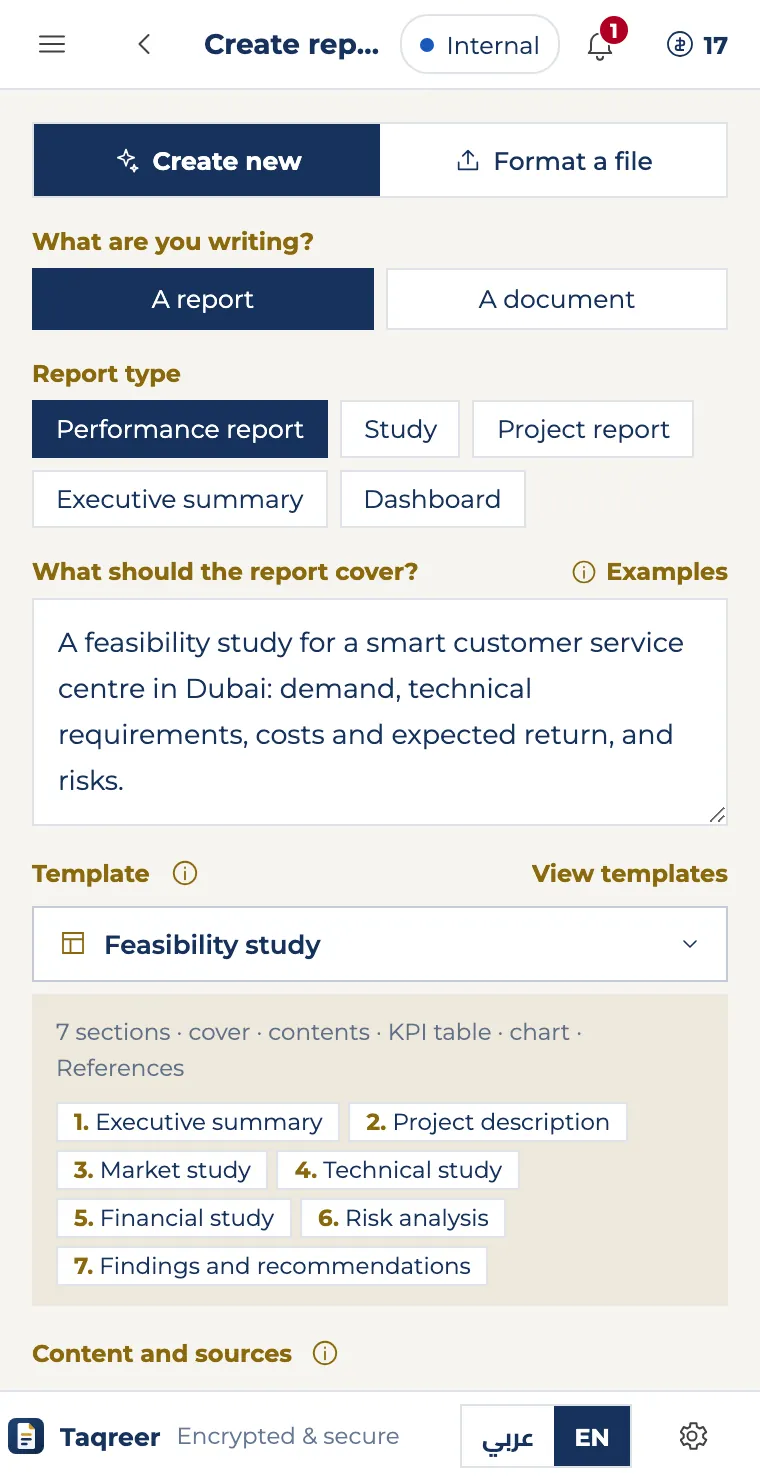
- Under “What are you writing?” choose A report, then the Report type.
- In “What should the report cover?” write what it must include: figures, points and context. For a ready example, choose Examples.
- Choose the Template — its sections show below it — and attach sources under Content and sources if you like.
- Choose Create report in document. The report is written into the document in about a minute; you can Stop it.
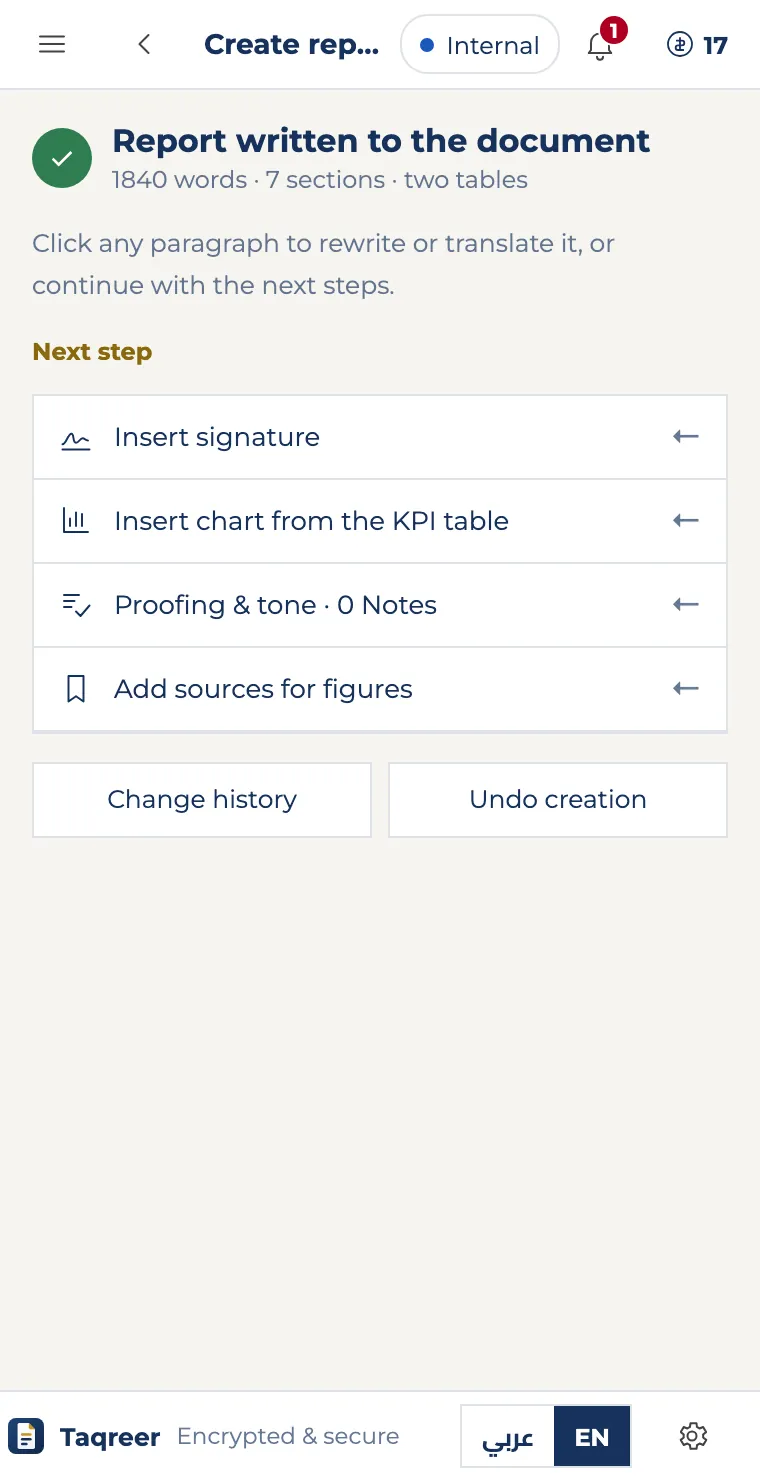
- Then: Next step for signature, chart, proofing and sources — or Undo creation to start again.
Your balance: Is only charged when the report is created.
Dashboard report
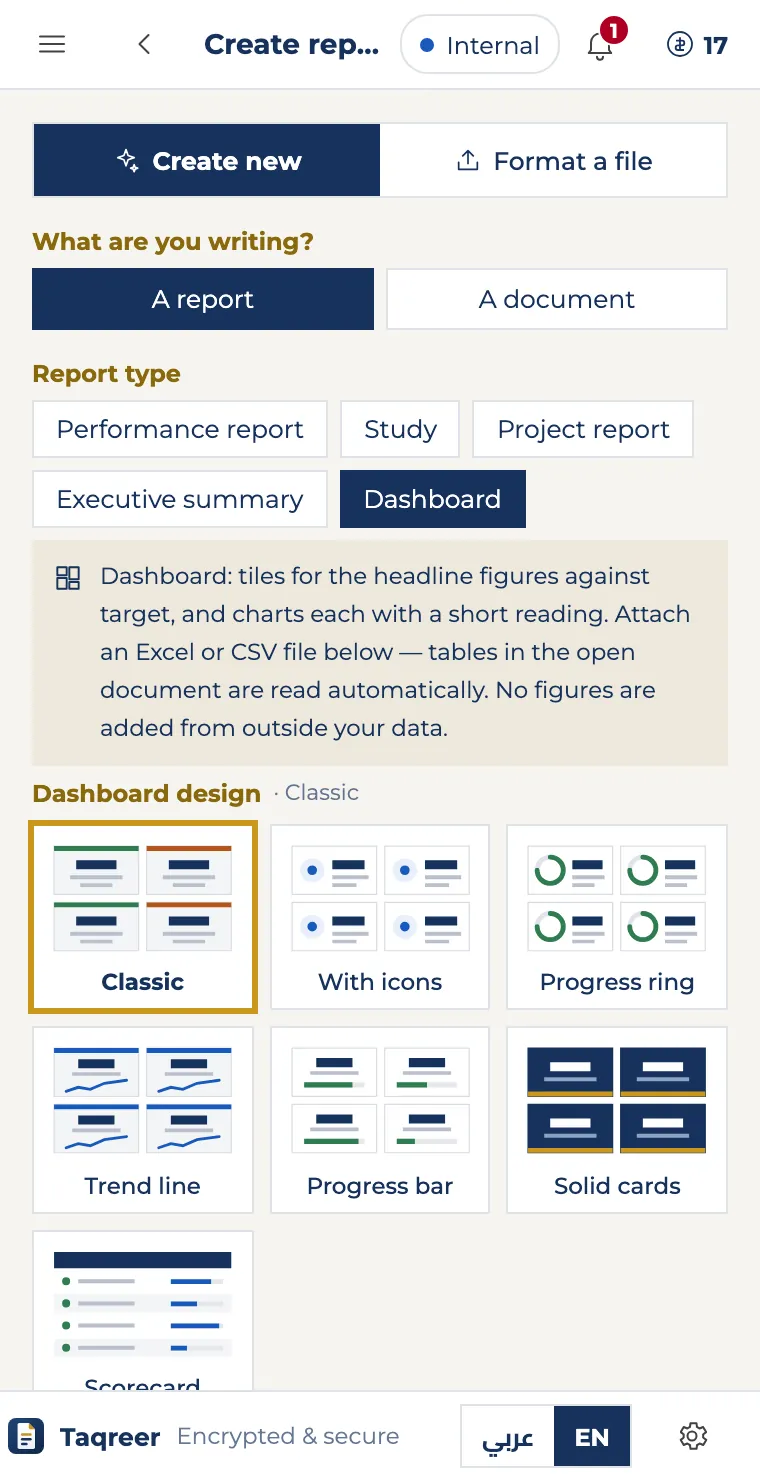
- In Create report, choose the report type Dashboard.
- Attach an Excel or CSV file under Content and sources, or rely on the open document’s tables.
- Pick one of the seven designs under Dashboard design.
- Choose Create report in document: indicator tiles and charts are written into Word, ready to edit.
Templates
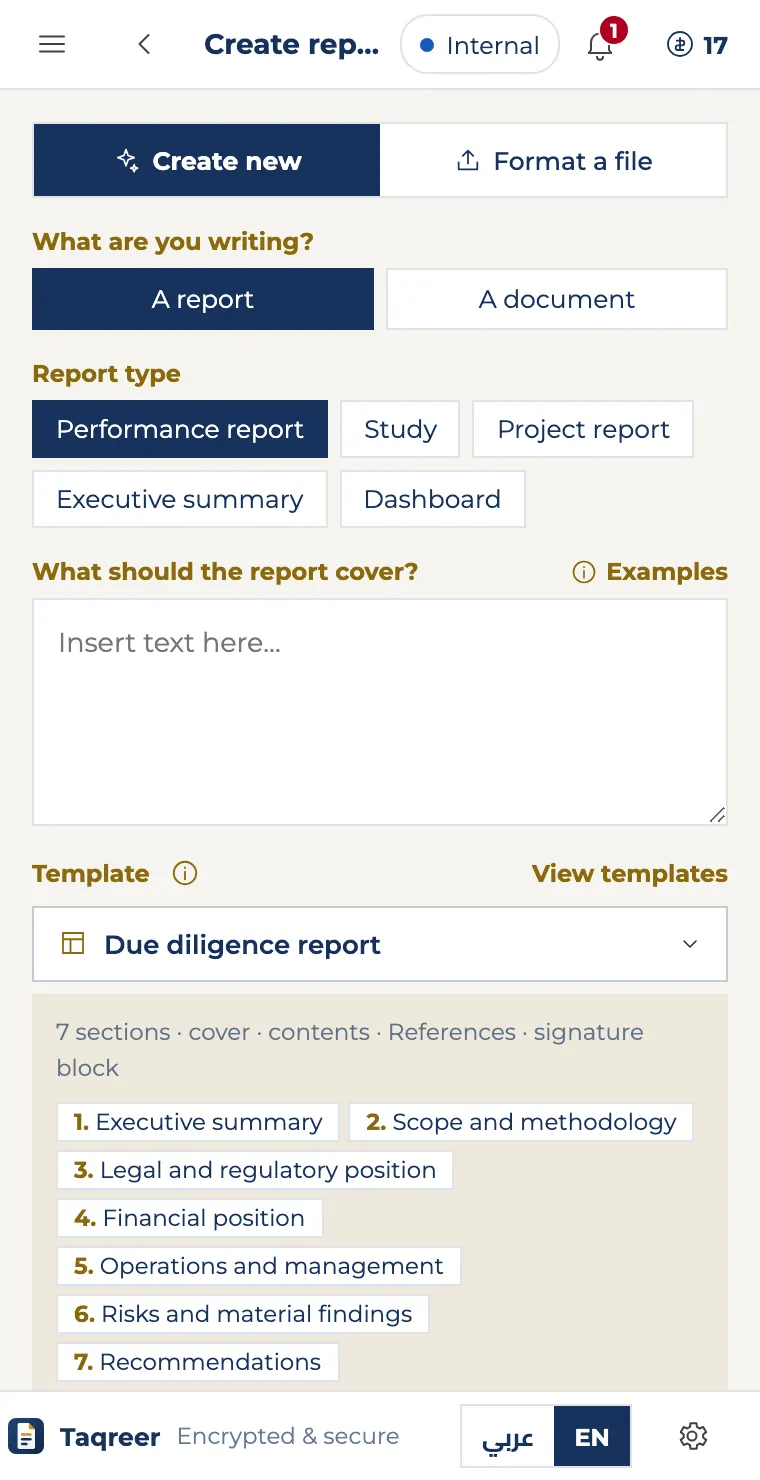
- In Create report, open the Template list, or View templates to browse them all — or on the ribbon: Templates.
- Each template shows its sections below it — 18 templates, including feasibility study, due diligence, market analysis, general report, letters and minutes.
- In the templates window, choose Use when creating to apply it to your next report.
Edit the selected text
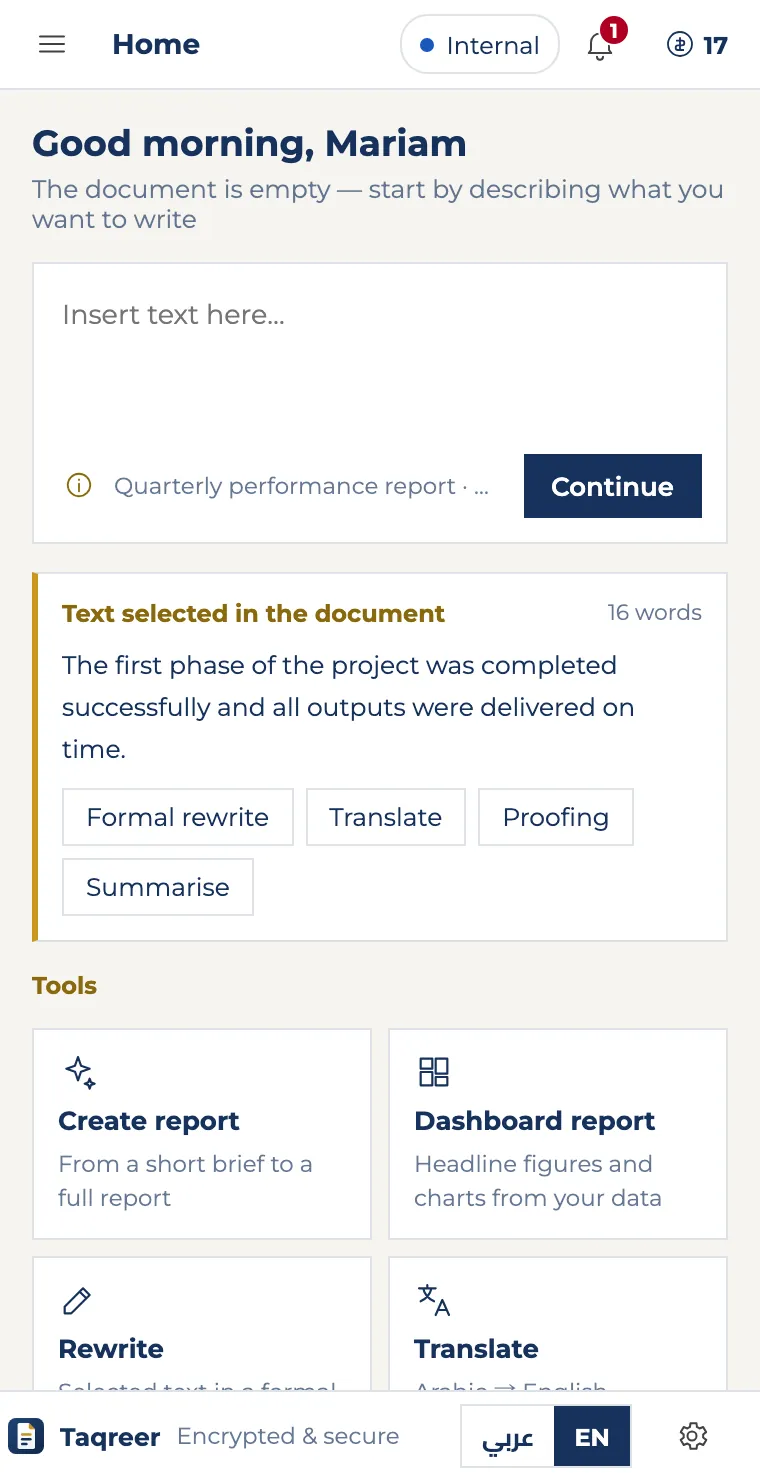
- Select one or more paragraphs in the document.
- Home shows Text selected in the document with Formal rewrite, Translate, Proofing and Summarise.
- Pick a tool: changes arrive as tracked changes — accept or reject them from Word’s Review tab.
Without opening the pane: Quick translate and Quick enhance in the ribbon’s Fast track group. Translation follows the text’s language: Arabic to English, English to Arabic.
Signature
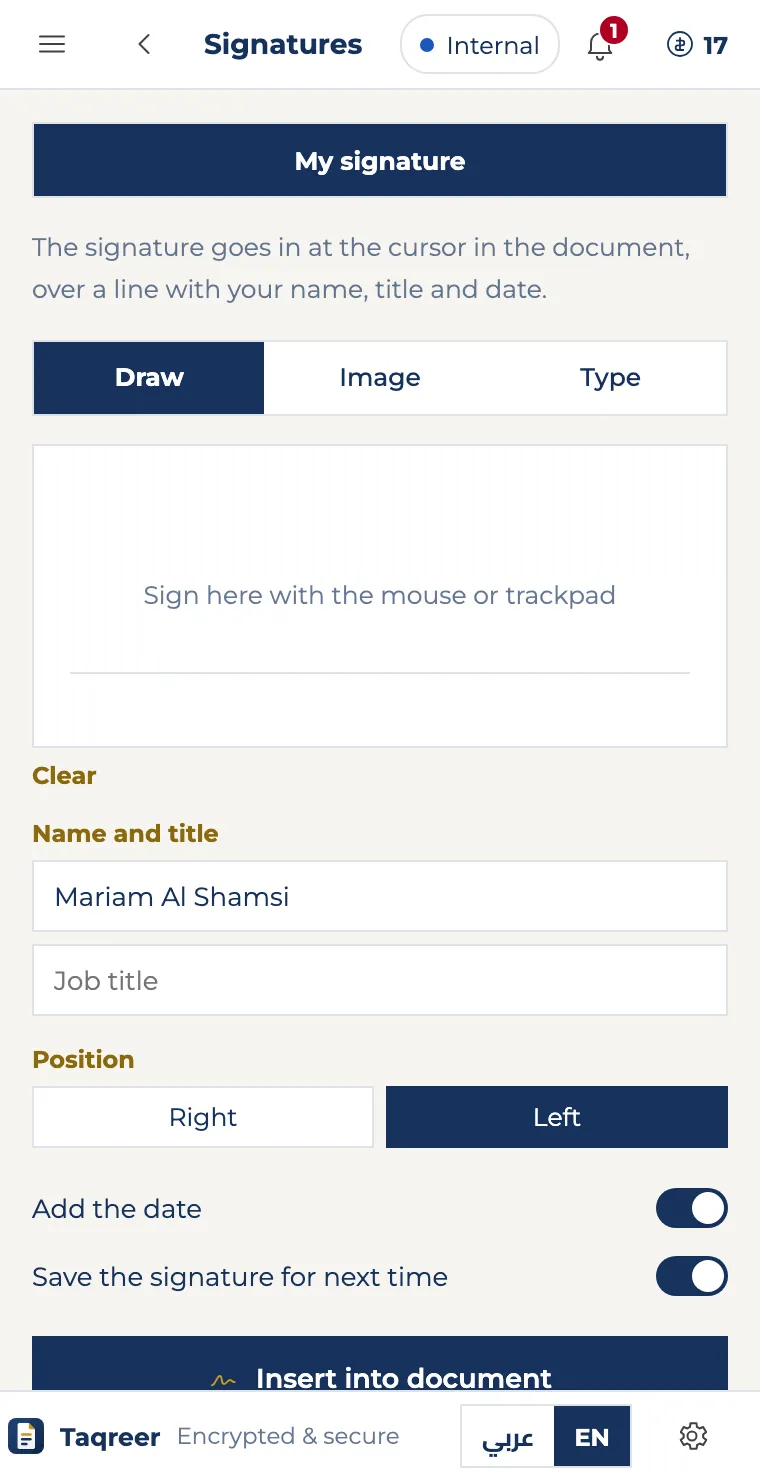
- On the ribbon: Insert signature — or Quick sign for your saved signature.
- Under My signature choose Draw, Image or Type, and add your Name and title.
- Choose the Position and Add the date, then Insert into document.
- Turn on Save the signature for next time to make it one click from then on.
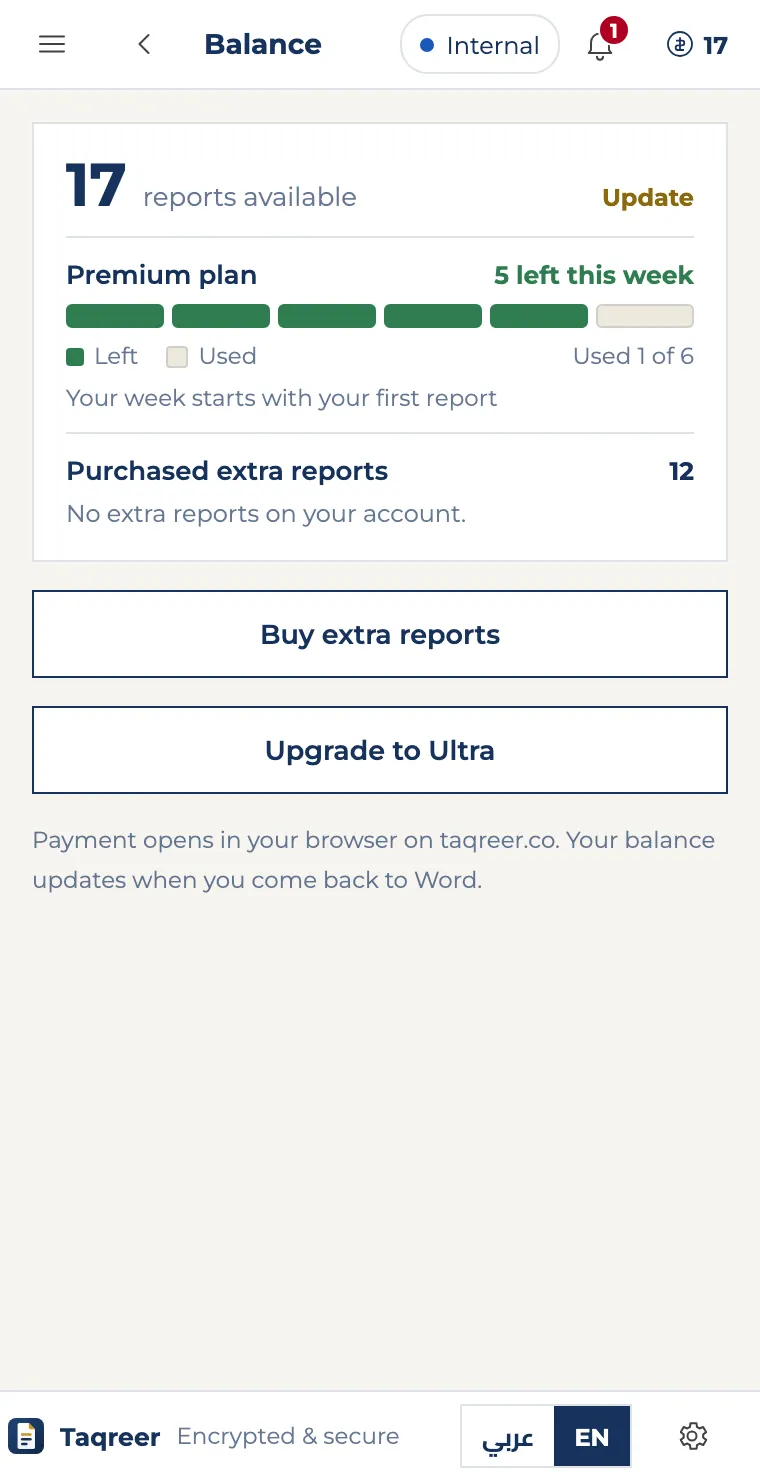
Balance and plan
- Your balance is always at the top of the pane; click it to open Balance.
- You see the reports left this week on your plan, and the extra reports you bought.
- Choose Buy extra reports or upgrade: payment opens at taqreer.co in your browser, and the balance updates when you come back to Word.
Large documents: Long or bilingual contracts count as two reports, and you’re asked to confirm first.
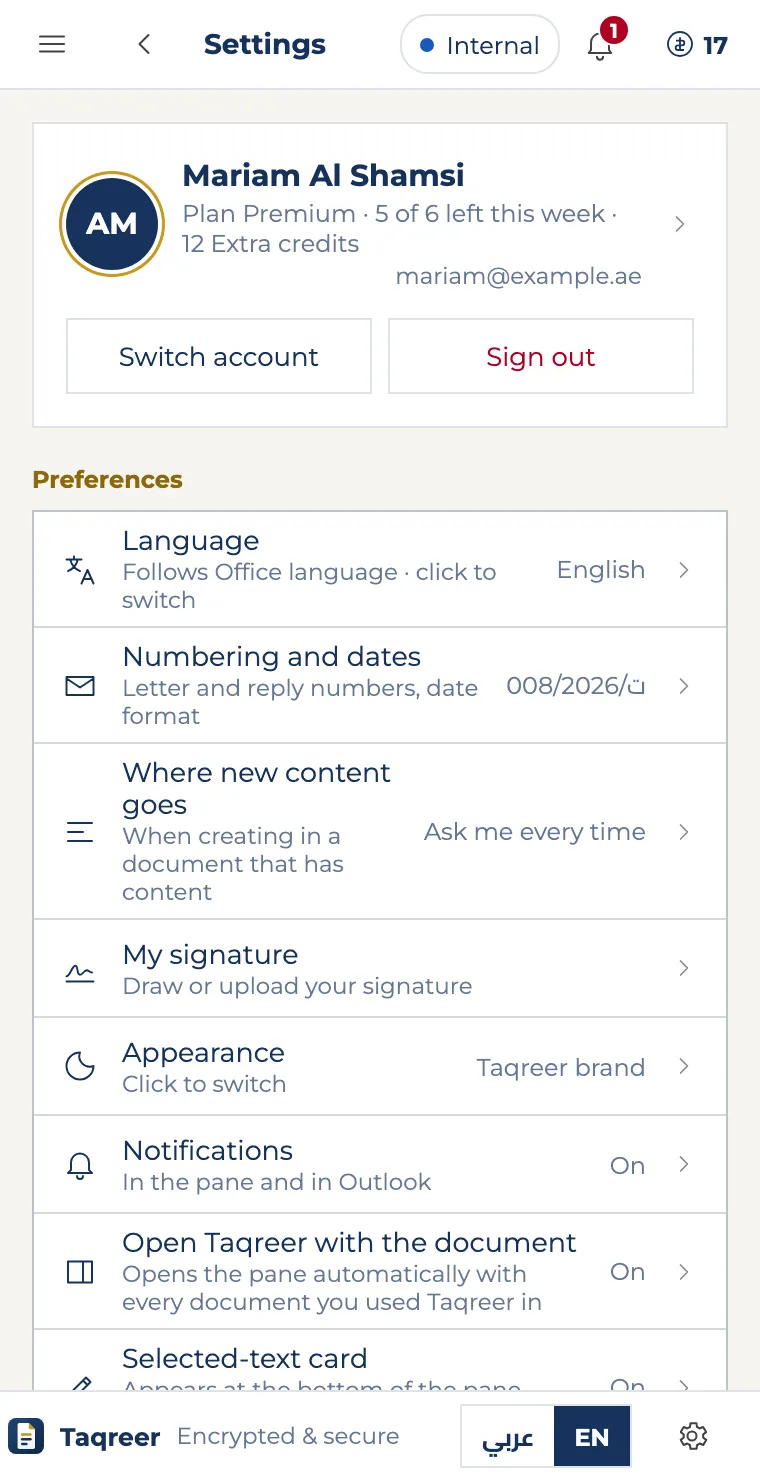
Settings and language
- The settings button at the bottom of the pane.
- Your account: Switch account or Sign out.
- Preferences: Language, Where new content goes, My signature, Open Taqreer with the document, and Selected-text card.
Switch language quickly: عربي / EN at the bottom of the pane.
Specifications
What TAQREER needs to work, and what it can reach — for you and your organisation’s IT team.
| Where it works | Word on Windows and Mac in Microsoft 365 or Office 2019 and later, and Word on the web. iPad isn’t supported yet. |
|---|---|
| Office requirement | WordApi 1.3 and add-in commands (ribbon buttons). |
| Permission | Read and write the open document only (ReadWriteDocument) — no access to other files on your device. |
| Account | A TAQREER account at taqreer.co — no Microsoft work account (Entra ID) needed. |
| Languages | Arabic and English. Follows Office’s language; switch it at the bottom of the pane. |
| Pane width | 440 px the first time. Drag its edge to change it — it’s remembered. |
| Source files | Word, PDF, PowerPoint, Excel, CSV and text — up to 6 MB per file. |
| Dashboard data | An Excel (xlsx or xls) or CSV file, or the document’s own tables. |
| Images | Logo and signature as PNG or JPEG. |
| Selected text | Up to 12,000 characters at a time for rewrite, proofing and translation. |
| Generation time | About a minute per report, depending on length and attached sources. |
| Balance | One report per successful creation; nothing is charged if it fails. A large document (long or bilingual contracts) counts as two, after you confirm. |
| Edits | Rewrites, proofing and translations arrive as tracked changes, and a creation can be undone. |
| Connection | Needs the internet; it doesn’t work offline. |
| Domains to allow | taqreer.coclerk.taqreer.coaccounts.taqreer.coappsforoffice.microsoft.comunpkg.comcdnjs.cloudflare.comfonts.googleapis.comfonts.gstatic.com |
| Data | Encrypted in transit and at rest. What is sent, where it’s kept and for how long: see the privacy policy. |
To deploy it to your organisation: install via the Microsoft 365 admin · Privacy policy
Troubleshooting
I can’t see the Taqreer tab
The tab sits at the end of the ribbon, after View. Word on the web may show the simplified ribbon: expand it with the ribbon arrow or open the “…” menu at its end. On Windows and Mac, close Word and open it again. If your organisation deployed it through Microsoft 365, it can take one to three days to appear.
The pane didn’t open by itself
The pane opens automatically once: right after you install it from Microsoft Marketplace. Every time after that, open it from the Taqreer tab → Open pane, or any button on the tab. If your organisation installed it, the pane can open with every document you used it in: Settings → “Open Taqreer with the document”.
The sign-in page didn’t appear
The taqreer.co sign-in page opens in your browser or in a small window. If it doesn’t, allow pop-ups for taqreer.co, choose “Sign in to Taqreer” again, and come back to Word once you’re signed in.
My organisation’s network blocks the pane
The pane needs the domains listed under Specifications below (taqreer.co, the sign-in pages and Office’s libraries). Ask your IT team to allow them.
It says my balance isn’t enough
Each report created successfully uses one report from your weekly or extra balance; nothing is charged if creation fails. Buy extra reports or upgrade on taqreer.co — the pane’s balance updates when you come back to Word.
Does it work on iPad?
Not yet. TAQREER works in Word on Windows and Mac, and in Word on the web.